Integrating DJI AeroScope with Dronetag
DJI AeroScope detects nearby DJI drones and their operators. By pointing your AeroScope at Dronetag, its detections appear in the Dronetag App alongside your other data — no extra hardware required.
This integration is available to existing customers and is set up individually for each unit.
If you have a DJI AeroScope (Mobile or Stationary) and would like to connect it to Dronetag, contact us at support@dronetag.com and we will enable it for your unit.
This is an early integration and will be improved over time. For now:
- Detected drones are shown as Remote ID (Wi‑Fi Beacon) signals.
- The AeroScope itself appears in the Dronetag App as a Dronetag Scout device.
- The location of the AeroScope is not shown on the map — reporting the receiver's own position is not supported yet, for technical reasons.
What you need
- A DJI AeroScope unit — Mobile or Stationary (AS-F1800).
- The serial number of your AeroScope. You send this to us so we can add your unit. You can find it in DJI Assistant 2 → Device Status, or on the label on the unit itself.
How to integrate
Contact Dronetag support
Email support@dronetag.com with the serial number of your AeroScope. Once we confirm the serial and add it on our side, your AeroScope can be registered in the Dronetag App like any other Dronetag device.
Open the Server Network Settings
Connect your AeroScope to DJI Assistant 2 (via the same router, or a direct Ethernet connection) and open Network Settings → Server Network Settings.
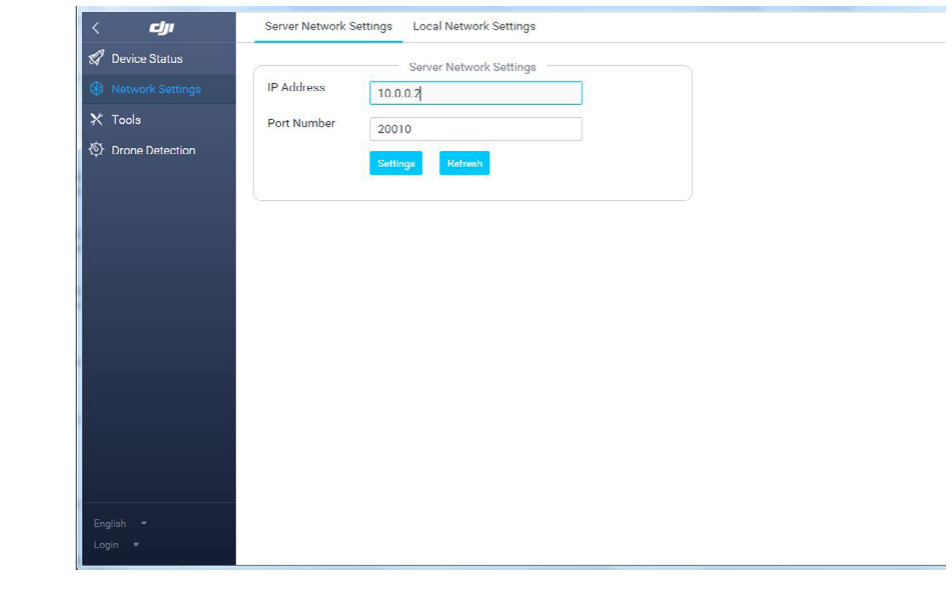
Point the AeroScope at Dronetag
In Server Network Settings, enter the following, then click Settings to save and Refresh to confirm:
Field Value IP Address aeroscope.dronetag.appPort Number 9090Confirm the connection
Once configured, your AeroScope connects to Dronetag. Any DJI drone it detects appears in the Dronetag App as a Remote ID (Wi‑Fi Beacon) signal.
Manuals
For the full setup of the unit itself (antennas, power, and network mode), follow the DJI manual for your model: