Email Notifications
Make sure you're on the 2.275.7 app version or newer to access this feature.
In addition to Push Notifications, the Dronetag app can now send drone detection notifications to up to 20 email addresses.
Email notifications are useful when you are away from the device running the app, or when you want to keep a written record of detections in your inbox. They work even when the Dronetag app is closed on all your devices.
What is sent
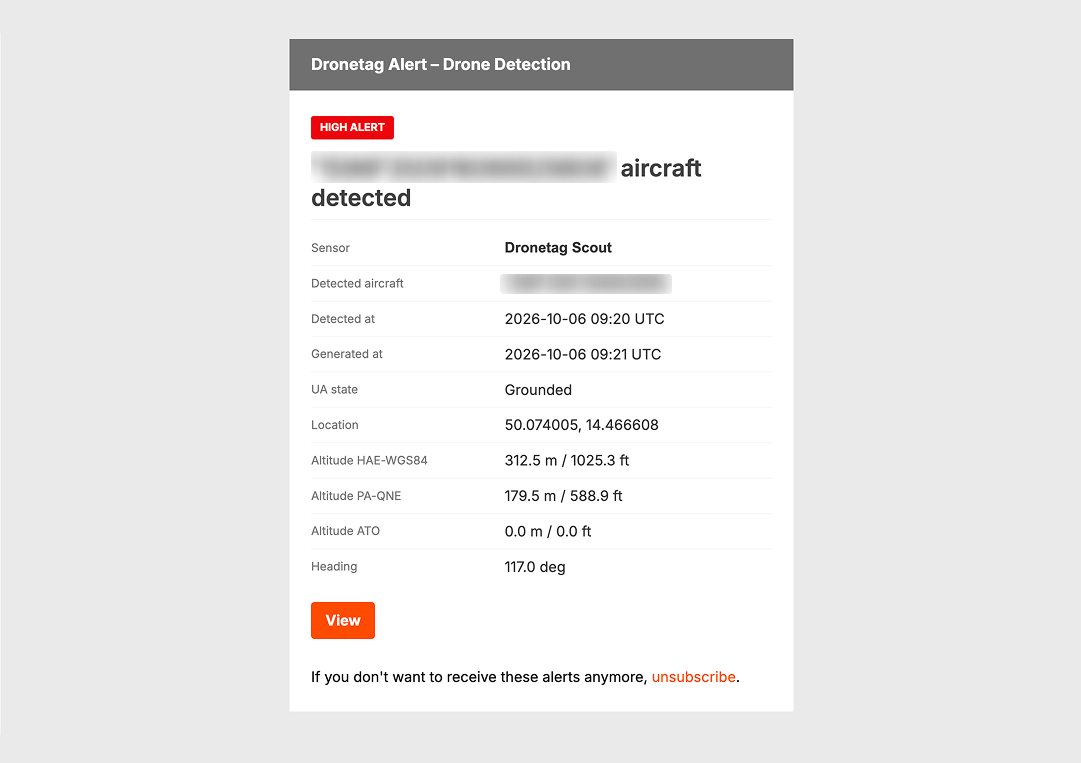
Once a detection is captured by your receiver, an email alert is sent to all listed contacts. The message contains evidence such as the aircraft UAS ID, position, source receiver and a link to the detection in the Dronetag App.
200 EMAILS PER DAY
Accounts are limited to sending 200 individual emails per day. Once this limit is reached, we notify you by email and tell you how much time remains until the limit resets.
How to enable email notifications
0. (On mobile) Update your Dronetag App
When using the app on a mobile device, check your app marketplace (Google Play, App Store) for available updates. Make sure you have version 2.275.7 or higher installed.
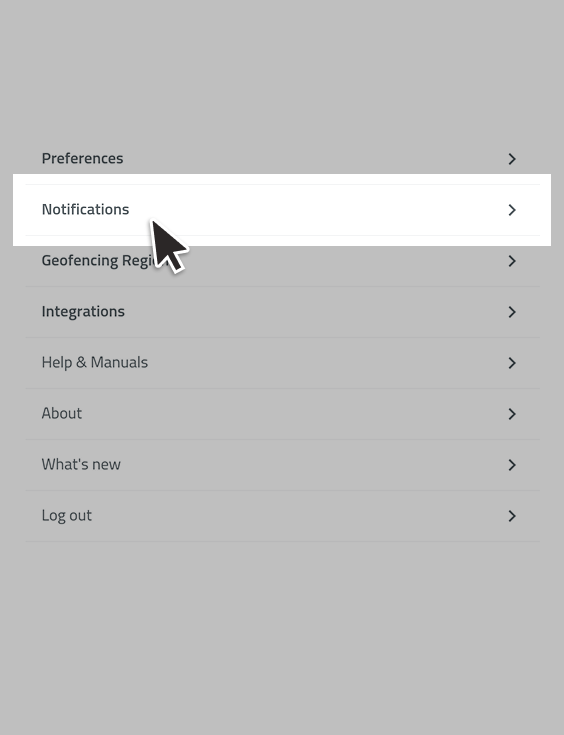
1. Navigate to Notification settings
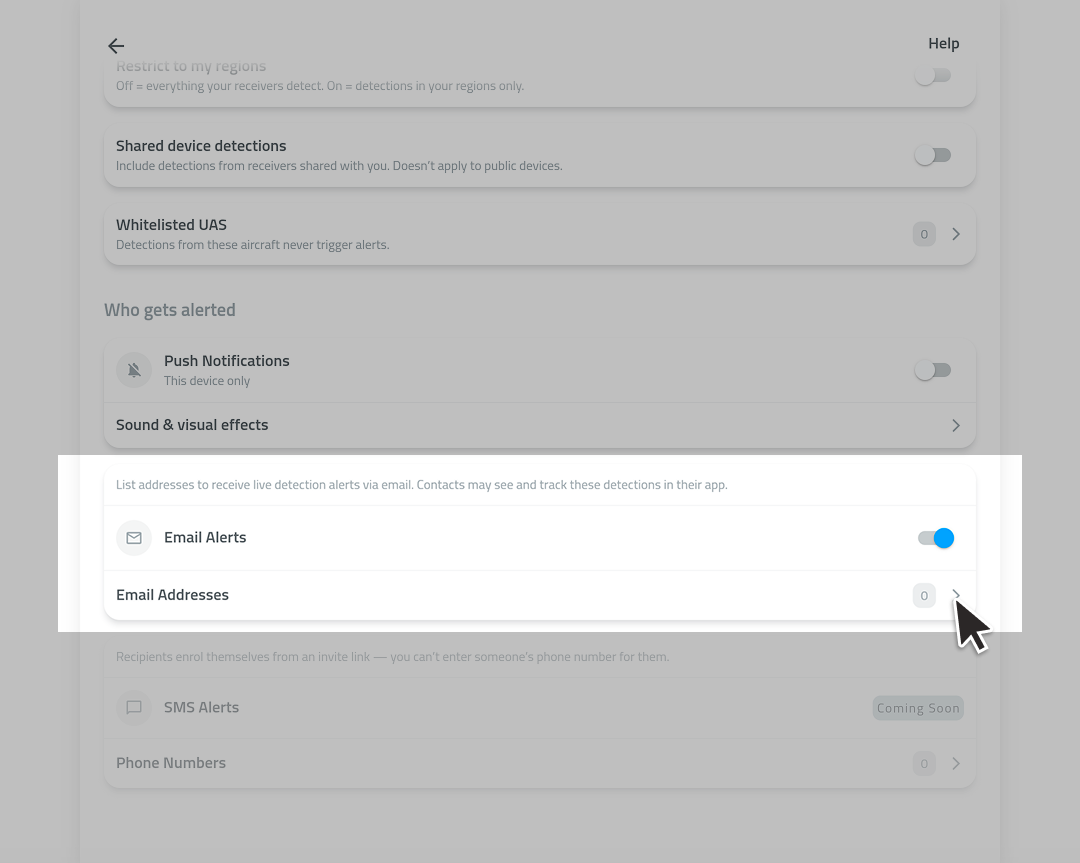
2. Scroll down, turn on the email toggle, then open Email Addresses
3. Add the recipient's address to the contact list
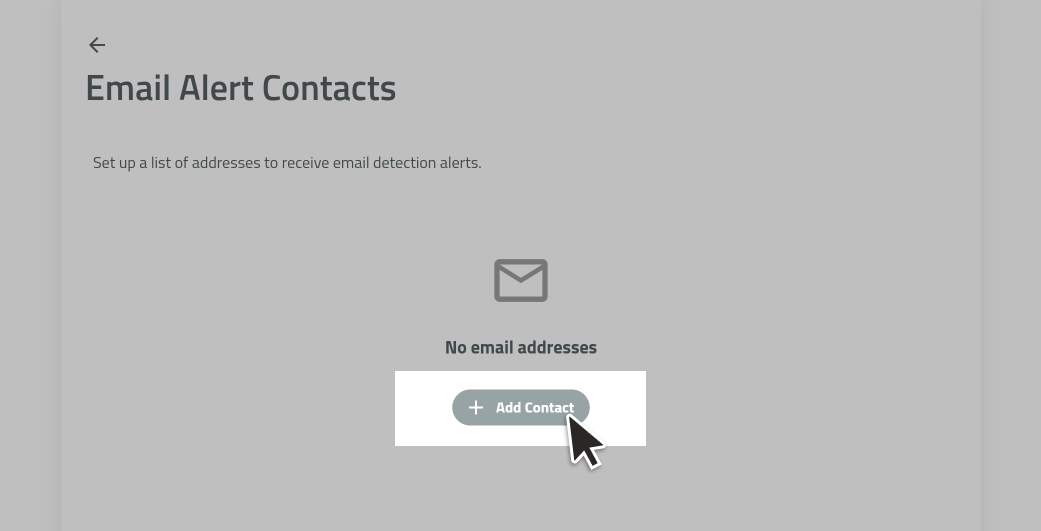
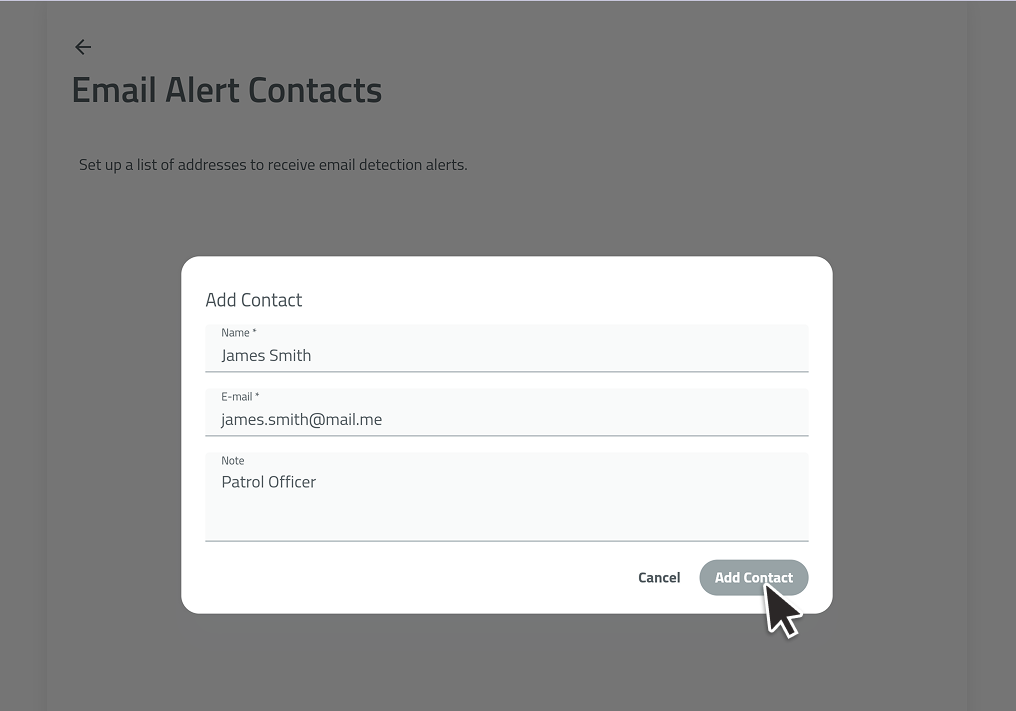
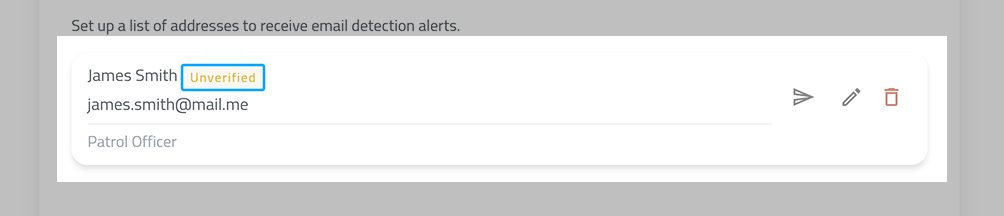
Shortly after you add the address, a verification email will be sent to it. Addresses that haven't agreed to receive notifications yet are marked with a yellow "Unverified" badge.
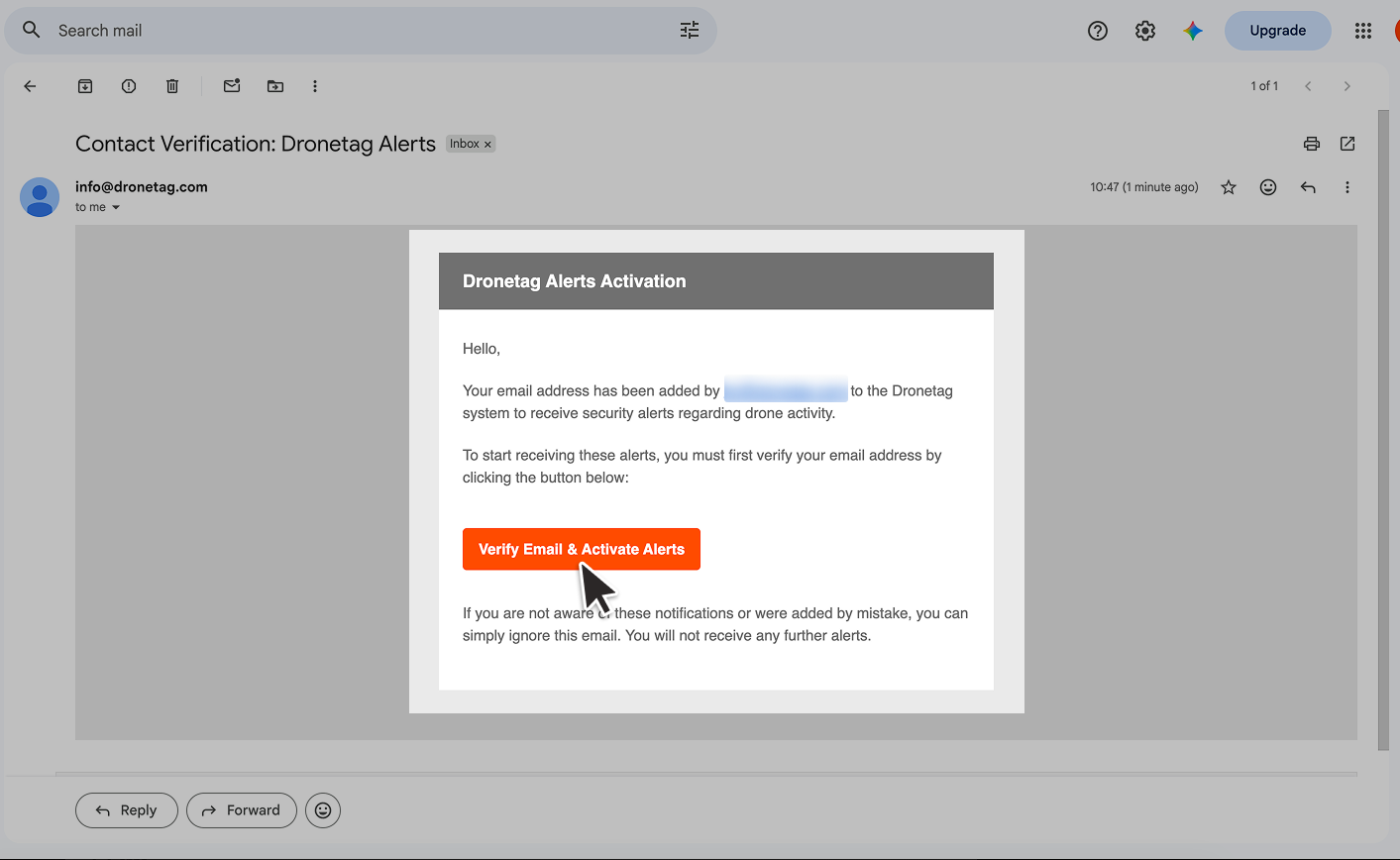
4. Verify the recipient address via the verification email
Open the contact's inbox. In the verification email, click [Verify & Activate Alerts] and you will be redirected to the activation portal. Click [Confirm] to start receiving email notifications.

- Check your spam or junk folder and add
info@dronetag.comto your safe senders. - If you can't find the verification message at all, open the email contact list and resend the link by tapping the paper plane icon on the contact card. On mobile, use the three-dot menu on the card and select "Resend link".
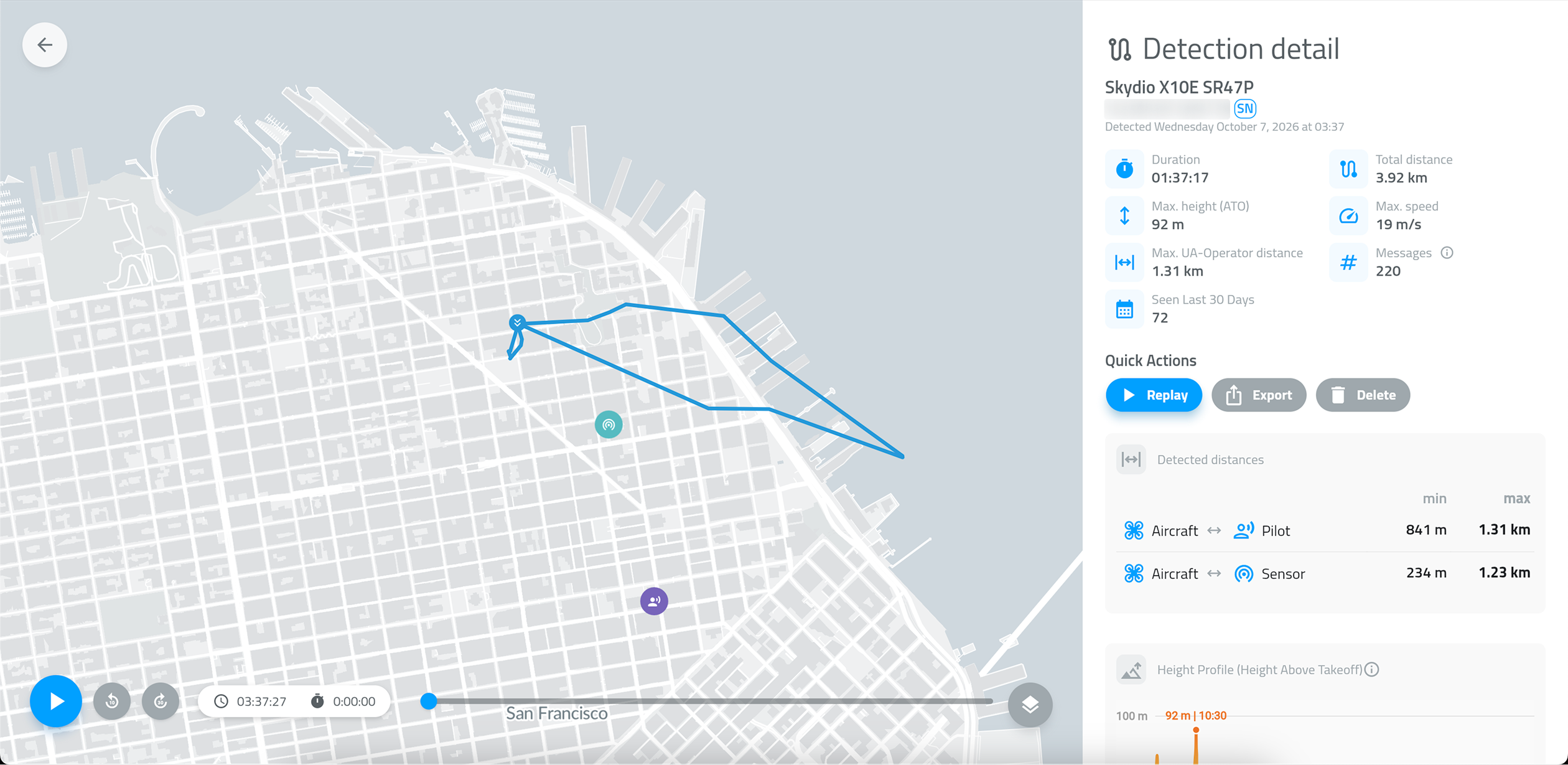
View the detection in the Dronetag App
Use the [View] button in the email to open the detection in your Dronetag App.
To view detections from an email notification, sign in to the account that owns the receiver, or have the owner share the receiver's data with your own Dronetag App account and sign in. Otherwise, the browser will not load the detection.

Notification filters
Once emails are set up, you can tweak the settings to suit your needs.
In Notifications, under the "When" section, you can customise the conditions for detection notifications. Emails use the same filters as Push Notifications.
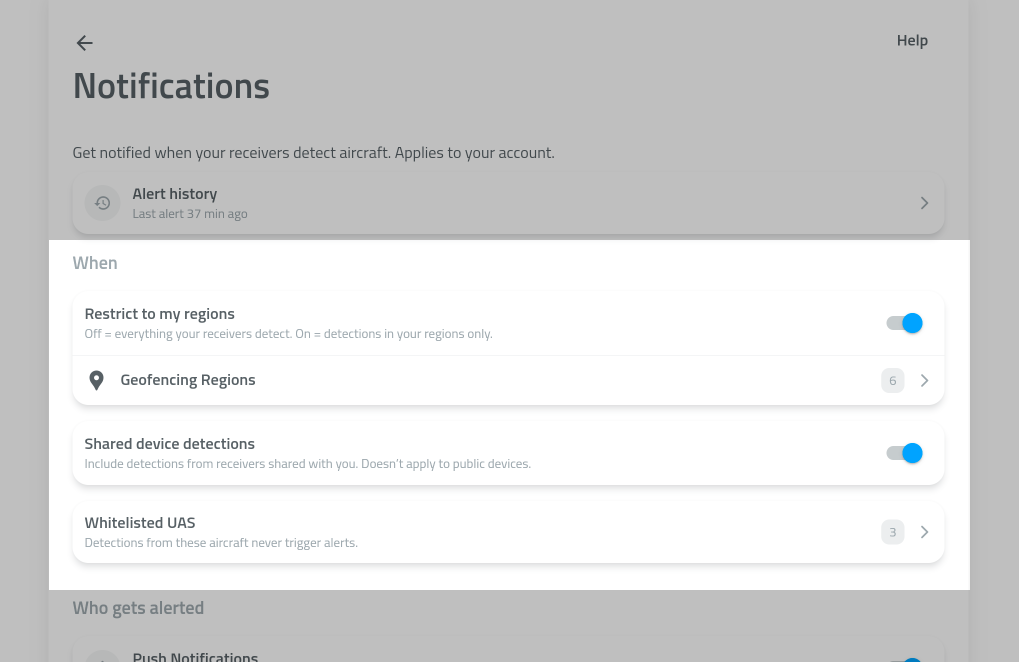
| Filter | Function |
|---|---|
| Geofencing region violations | Sends notifications for defined areas only. See how to set them up → |
| Shared detections | Toggles notifications for detections captured by devices shared with you. |
| Whitelisted UAS | Allows you to list drones that won't trigger notifications. |
- Email notifications are set up once for your whole account, not separately on each device.
- Email notifications can be used together with Push Notifications, or on their own.
- You can turn email notifications off at any time in Notification settings, and each recipient can unsubscribe via the Unsubscribe link in every email.
Troubleshooting
I don't receive any emails
- Check your spam or junk folder and add
info@dronetag.comto your safe senders. - Check that the recipient email address is spelled correctly in the contact list.
- If "Restrict notifications to defined regions" is turned on, make sure you have at least one region toggled on. Without this, no notifications are sent.
- Company email servers can block automated emails. Ask your IT team to allow our sender address.
I receive too many emails
- Restrict alerts to a specific area with Geofencing regions.
- Add drones you already know, for example your own, to the Whitelisted UAS list.
💬 FEEDBACK & SUPPORT
This feature is new and we keep improving it.
If you encounter any issues or have feedback, please contact your representative or reach out to our support team at support@dronetag.com.