Standard Remote ID for Manufacturers in the USA
To achieve Standard Remote ID compliance in the United States under FAA 14 CFR Part 89, the Dronetag DRI module must be integrated with the flight controller using the MAVLink OpenDroneID message set. This integration mode is mandatory for manufacturers producing drones classified as Standard Remote ID Drones.
Certification in the USA
In addition to integrating the Dronetag DRI module, manufacturers targeting the US market must complete two parallel certification processes: FAA Standard Remote ID compliance and FCC equipment authorization. These steps are straightforward if you follow the official guidance.
If you need any help certifying our device, please contact us at support@dronetag.com.
FAA Standard Remote ID compliance (14 CFR Part 89)
To market a drone as a Standard Remote ID Drone, you must:
- Use an FAA‑accepted Means of Compliance (MoC). This is the method that shows your design meets the Remote ID performance requirements. You can either adopt an existing accepted MoC (e.g. ASTM F3411) or submit your own for FAA acceptance.
- File a Declaration of Compliance (DoC). This is a formal statement to the FAA that your production units follow an accepted MoC. Without FAA acceptance of your DoC, your drone is not legally considered a Standard Remote ID aircraft.
- Assign valid Remote ID serial numbers. Each unit must carry a unique serial in the ANSI/CTA‑2063‑A format. These serials are registered in the FAA DroneZone when you submit your DoC.
Unlike EU C0 class, there is no “self‑declaration” path for Standard Remote ID drones in the US You must go through the FAA’s MoC/DoC process.
Means of Compliance (MoC)
To certify a drone as a Standard Remote ID aircraft in the United States, manufacturers must adopt an FAA‑accepted Means of Compliance. The most common is ASTM F3411, which defines the Remote ID performance requirements.
Testing against this standard is performed according to ASTM F3586‑22 (Standard Practice for Remote ID Means of Compliance to ASTM F3411). These procedures are mandatory and carried out by accredited laboratories. Manufacturers do not need to implement the procedures themselves, but must ensure their devices pass them. Reference: ASTM F3586‑22.
As part of the MoC submission, manufacturers must also provide a Compliance Matrix. This document maps each regulatory requirement to the corresponding implementation or evidence in the product. It serves as a structured checklist for both the manufacturer and the FAA to verify that all obligations are covered.
We provide a ready‑to‑use Dronetag DRI - ASTM F3411‑22a Compliance Matrix to simplify this process: Dronetag DRI - ASTM F3411‑22a Compliance Matrix.
For verification during development, we recommend:
- nRF Sniffer Tool – to capture and analyze BLE broadcasts.
- DroneScanner app – to confirm that Remote ID messages are transmitted correctly on a mobile device.
- Drone Scanner on Google Play
- Drone Scanner on Apple Store
iOS devices are not recommended, as they do not support Bluetooth 5 Long Range (Coded PHY)
Declaration of Compliance (DoC)
The Declaration of Compliance (DoC) is a formal submission to the FAA confirming that your production units conform to an accepted Means of Compliance (MoC).
It is a legal attestation that your drone design, manufacturing process, and final product meet all Remote ID performance requirements defined in the MoC.
A DoC can only be filed after your MoC has been reviewed and accepted by the FAA. This includes the submission of a complete Compliance Matrix and any supporting documentation required by the chosen standard (e.g. ASTM F3411).
Once accepted, the FAA assigns a unique Remote ID FRN (Federal Registration Number) to your product line. This FRN is used to register Remote ID serial numbers in the FAA DroneZone portal and links your production units to the approved compliance path.
Key points:
- The DoC must be submitted by the manufacturer or authorized representative.
- It applies to a specific product line or configuration — changes in hardware or firmware may require a new DoC.
- The FAA may request additional documentation or clarification before accepting the DoC.
- Until the DoC is accepted, the drone cannot be marketed or operated as a Standard Remote ID aircraft in the United States.
For official guidance, refer to FAA Advisory Circular AC 89‑2.
Remote ID serial assignment
Each unit must carry a unique serial number in the ANSI/CTA‑2063‑A format. We recommend hard‑coding the serial into the flight controller firmware to prevent tampering. These serials are registered in the FAA DroneZone when submitting your DoC.
Serial numbers must conform to the ICAO-compliant ASTM format:
<ICAO Manufacturer Code> + <Unique Device Serial>
Example: 1596ABC1234567890
As a drone manufacturer, you must request an ICAO prefix for your organization. See: ICAO - Remote ID Number Registration
FCC equipment authorization (47 CFR Part 2, Subpart J)
Any drone or module with RF transmitters must be authorized by the FCC before it can be marketed or imported into the United States.
There are two approval paths:
- Certification – required for most intentional radiators (e.g. Wi‑Fi, Bluetooth, telemetry). Testing must be done by an FCC‑recognized accredited lab, and approval is granted by a Telecommunications Certification Body (TCB).
- Supplier’s Declaration of Conformity (SDoC) – available for some devices, with testing at a competent lab, but without TCB involvement.
Once approved, certified devices receive an FCC ID, which must be printed on the product and included in the user manual. For SDoC, you must provide a compliance statement with the product and keep records available for inspection.
Simplified integration using “Contains FCC ID”
If your drone integrates a module that already has FCC Certification, you may use the “Contains FCC ID” labeling method. This allows you to avoid re‑certifying the entire drone, as long as:
- The module is used in accordance with its original certification.
- The antenna type and gain match the approved configuration.
The Dronetag DRI module integrates the u-blox ANNA-B4 radio, which is certified under the FCC ID:
FCC ID: XPYANNAB4
(This must appear on the product label or documentation of any device that incorporates the module.)
This shortcut is especially useful for manufacturers using pre‑certified Remote ID modules like Dronetag DRI.
Preapproved antennas
FCC Certification is always tied to specific antenna types and configurations. Using a different antenna than the one listed in the original certification may invalidate the authorization. We provide a list of preapproved antennas compatible with Dronetag DRI modules: View preapproved antenna list
The small antenna included with Dronetag DRI or Dronetag DRI with internal antenna is intended for testing only and may not meet FCC EIRP limits for final certification. For preapproved antenna list see: View preapproved antenna list
By completing both FAA and FCC processes in parallel with integration, you ensure your drone can be legally marketed in the US as a Standard Remote ID product.
Integration Architecture
The integration relies on a collaborative data relay between the Ground Control Station (GCS), the drone, and the Dronetag DRI transmitter as follows:
- The GCS software (e.g., QGroundControl or Mission Planner) sends OpenDroneID MAVLink messages (e.g., operator info, emergency status) to the flight controller.
- The flight controller relays these messages to the Dronetag DRI with updated target component/system IDs.
- If the GCS connection is lost, the drone continues to send the most recent known values to the DRI to maintain broadcast continuity.
This ensures Remote ID broadcasts are maintained in accordance with FAA expectations for Standard RID drones, even in loss-of-link scenarios.
This also means that the aircraft is not permitted to take off (pre-flight checks will fail) without a functional Dronetag DRI, or when the connection with the DRI or GNSS is lost. These pre-flight checks should not be possible to bypass.
Key Integration Requirements
The flight controller should run firmware compatible with the OpenDroneID system. There are several requirements that must be met; otherwise, full integration in terms of Standard Remote ID compliance in the United States cannot be achieved.
MAVLink messages
When integrated with an autopilot supporting OpenDroneID (ArduPilot, PX4), the Dronetag DRI exchanges MAVLink messages. The autopilot provides flight data, and DRI acts as the broadcast interface. All required messages and their meanings are listed below, with the most important ones described in dedicated sections.
Messages required from the autopilot
- MAVLINK_MSG_ID_ALTITUDE – altitude (PX4: pressure altitude).
- MAVLINK_MSG_ID_SCALED_PRESSURE – barometric pressure data.
- MAVLINK_MSG_ID_GPS_RAW_INT – GNSS position.
- MAVLINK_MSG_ID_SYSTEM_TIME – system time reference.
- MAVLINK_MSG_ID_GLOBAL_POSITION_INT – global position.
- MAVLINK_MSG_ID_HEARTBEAT – system status.
Additional messages from OpenDroneID set
- OPEN_DRONE_ID_BASIC_ID – drone identification (overrides DRI default ID).
- OPEN_DRONE_ID_LOCATION – drone position.
- OPEN_DRONE_ID_SYSTEM – system information.
- OPEN_DRONE_ID_OPERATOR_ID – operator identification (must come from autopilot, not DRI app).
- OPEN_DRONE_ID_ARM_STATUS – confirms DRI decoded all data correctly and drone is ready to arm (includes error messages if not).
Serial Number Handling (OPEN_DRONE_ID_BASIC_ID)
- The drone must transmit its own serial number to the DRI using the OPEN_DRONE_ID_BASIC_ID message. This value overrides the default DRI serial number.
- We strongly recommend hardcoding the serial number into the flight controller firmware, using a protected parameter or EEPROM setting to make it unchangeable.
- While sending the serial number from the GCS is possible, it is not recommended due to a higher risk of tampering or configuration errors.
Serial numbers must conform to the ICAO-compliant ASTM format as described in Remote ID serial assignment
Operator Location (OPEN_DRONE_ID_SYSTEM)
The FAA requires live operator location data to be included in Remote ID broadcasts. This is done using:
- OPEN_DRONE_ID_SYSTEM or OPEN_DRONE_ID_SYSTEM_UPDATE messages
- Message is sent from GCS to flight controller
- Then relayed from flight controller to Dronetag DRI
Requirements for GCS
- The GCS must have integrated GNSS receiver
- Both QGroundControl and Mission Planner support this functionality
- The operator position must be continuously updated and maintained throughout the flight
If the GCS stops sending data (e.g., GNSS signal loss or disconnection), the flight controller must continue sending the last known valid operator location to the DRI.
Flight controller feedback from transmitter (OPEN_DRONE_ID_ARM_STATUS)
The drone cannot take off in case of malfunction or incorrect configuration of the DRI transmission module this is done by the flight controller listening for the OPEN_DRONE_ID_ARM_STATUS message that contains if any problem occurs. The best test is to check if the DRI module is disconnected the drone should refuse to take off. The same situation is the drone should not be able to take off without a GNSS fix.
If you are building or modifying your own flight controller firmware, please see the Custom Firmware Integration Guide.
It explains which MAVLink and OpenDroneID messages must be published to the Dronetag DRI, which identifiers must be hardcoded in firmware (such as Remote ID serial numbers), and which values should remain configurable (such as Operator ID in the EU or operator location in the USA).
This guide also points to a reference implementation on GitHub and describes how to verify correct broadcasts using the DroneScanner app.
Step-by-Step Integration Guide
You will need:
- Flight controller (e.g. Pixhawk or ArduPilot) programmed with unique firmware created in section Unique firmware for Flight Controller
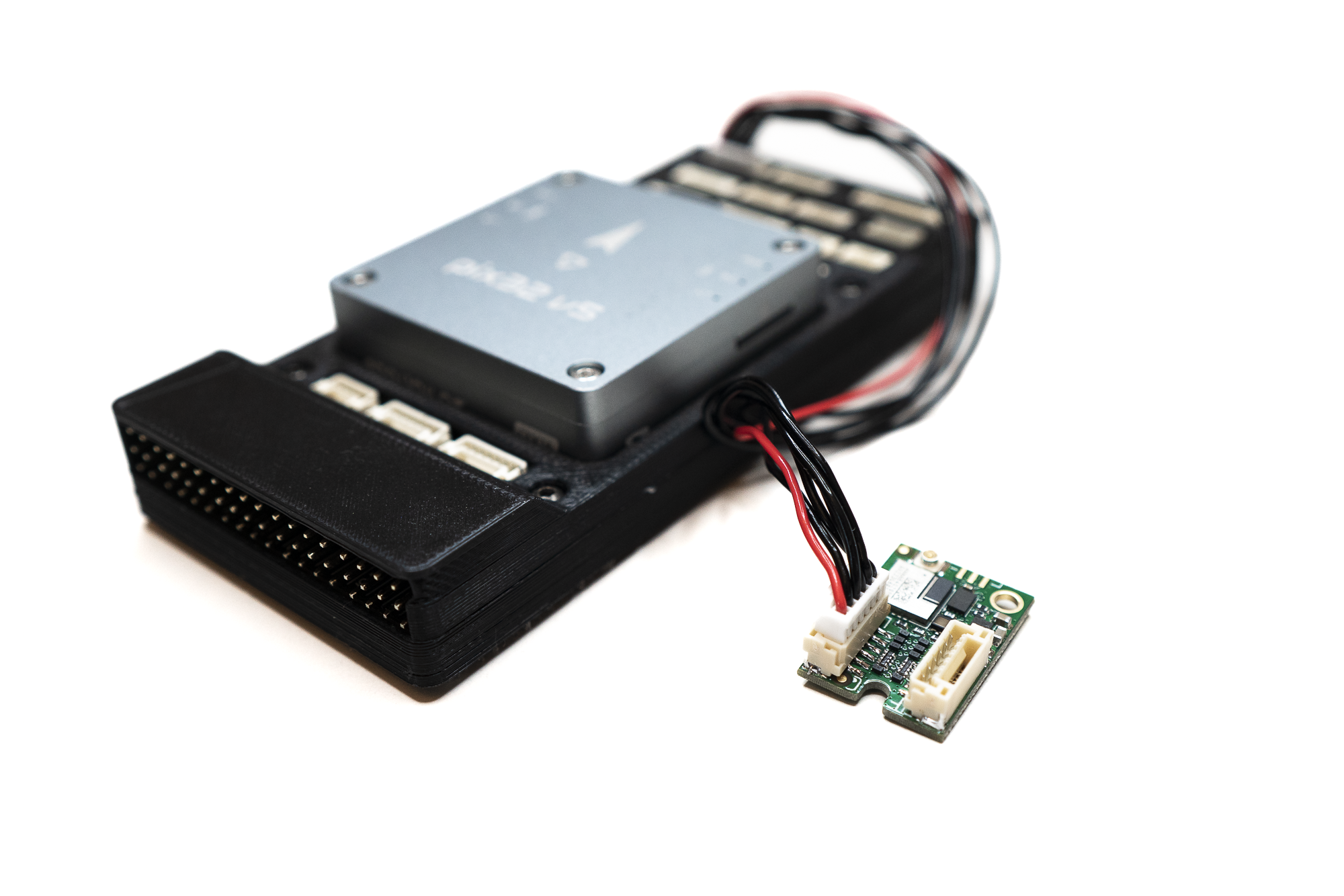
- Dronetag DRI module (recommended: U.FL antenna variant)
- Compatible antenna for the U.FL variant. The small testing antenna included with a Dronetag DRI in intended only for testing. We recommend choosing a preapproved antenna from our list of antennas.
- Compatible cable to connect the DRI module to your flight controller. The example cable is included with a Dronetag DRI.
- Tools to securely mount the DRI module to your drone: 3M Dual Lock / strong adhesive tape / Velcro or M2 screw.
- Smartphone supporting BLE 5.0 (for broadcast verification).
Unique firmware for Flight Controller
To integrate the Dronetag DRI module with your flight controller, you’ll need to build a unique firmware tailored to your hardware and compliance needs. The process depends on whether you're using ArduPilot or Pixhawk/PX4 firmware.
Ardupilot firmware
If your flight controller runs ArduPilot, follow the official ArduPilot guide for OpenDroneID firmware creation. This guide includes instructions for:
- Enabling tamper-resistant features
- Compiling firmware with specific board IDs
- Configuring MAVProxy for testing
Before proceeding, integrators should verify—based on the documentation of their flight controller manufacturer and the firmware used—whether the firmware publishes the required Remote ID messages listed earlier in the section Key Integration Requirements.
Pixhawk / PX4 Firmware
Pixhawk flight controllers running PX4 firmware currently offer experimental support for Remote ID only. However, full Open Drone ID integration is not yet supported at the time of writing. For details on current capabilities and supported hardware, refer to the PX4 Remote ID documentation.
We recommend checking this page regularly, as PX4 development is active and support for full Open Drone ID integration may be added in future releases.
Mount the DRI on the Drone
- Look at your drone and find a suitable place for secure installation of the DRI module:
- DRI module with integrated antenna should be placed away from conductive materials like metal or carbon fiber.
- DRI module with U.FL antenna can be mounted on any material, but the antenna should not be covered with any conductive material like metal or carbon fiber.
- With a DRI module with U.FL antenna: position and secure the antenna in a place where it can freely transmit and receive signals.
- Use screws or adhesive tape to secure the DRI module to your drone.
- The DRI module should be mounted firmly and securely so it will not move during future flights.
- Look at your drone and find a suitable place for secure installation of the DRI module:
Connect DRI to Flight Controller
- Using the included cable or your custom cable, connect the DRI module and the flight controller:
- On the DRI module, choose Flight Controller port (Port C)
- On the flight controller, choose any unused telemetry port or serial interface port
- Please note the number of the telemetry/serial port to which you connected the DRI. It will be needed later.
noteFrom now on, we will demonstrate the guide steps on a Holybro Pix32 v5 flight controller as a reference.
The guide steps are identical or very similar for any other compatible flight controller.warningFollow the manufacturer's documentation for your flight controller to decide where you should connect your DRI module.
- Using the included cable or your custom cable, connect the DRI module and the flight controller:
Power On and Check LED Indicators
-
Power on the drone and check the DRI status:
- Yellow LED → Indicates basic power-up and standby. This is the expected state for a brand-new Dronetag DRI.
- Green LED → DRI is ready for takeoff. This means the DRI is already configured, and you should verify that the rest of the configuration is correct.
- If the LED occasionally flashes red, you may continue with the configuration. This can indicate a temporary mismatch between the configuration of the flight controller and the DRI, which will be resolved in the following steps.
-
See the LED indicator reference for the full color guide.
noteFor correct interpretation of the LED status, always check the indicator from a direct viewing angle.
When viewed from the side, the internal construction of the RGB LED may partially obscure one of its elements, which can make the color appear different.-
Configure DRI via Mobile App
If you are doing this for the first time, see the detailed walkthrough: DRI Configuration
- Use one of the supported mobile apps:
- Open the Dronetag Toolbox app.
- Select your DRI device from the device list.
- On the Identification screen, select the US identification and save.
- On the Configuration screen, check the following settings:
- Enable MAVLink flight start – True
- GNSS Input – MAVLink
- Pressure data input – MAVLink
- MAVLink Integration Type – OpenDroneId
- Controller Port Baud Rate – 115200
Connect the Flight Controller to PC
If you are doing this for the first time, see the detailed walkthrough: Connect to Flight Controller
A USB connection is the fastest and most reliable method to configure the flight controller. The alternative is to use a SiK Telemetry connection, which is slower than USB connection, so be patient.
SiK TelemetryConnection using a SiK telemetry radio does not require a physical connection between the flight controller and PC, but it is much slower to work with than the USB method. How to use the Holybro SiK radio is described on the page Holybro SiK Radio V3 documentation.
SiK Telemetry warningIf you decide to connect a SiK Telemetry through the Port-Forwarding feature of the DRI, do not connect RTS/CTS lines between the DRI and the SiK radio.
Configure the Flight Controller
If you are doing this for the first time, see the detailed walkthrough: Flight Controller Setup
- Assign the correct serial port for the DRI in the FC parameters (symbol x in parameter names below). Use the noted number of the telemetry/serial port from the previous step:
SERIALx_PROTOCOL = MAVLink
- Set the serial port baud rate to 115200:
SERIALx_BAUD = 115200
- Turn off serial port flow control:
BRDSERx_RTSCTS = 0
- Enable OpenDroneID support:
DID_ENABLE = Enabled
- Set the port to which the DRI is connected:
DID_MAVPORT = x
infoTo set up your flight controller to support OpenDroneID, the flight controller must run unique firmware. See the section Unique firmware for Flight Controller.
- Assign the correct serial port for the DRI in the FC parameters (symbol x in parameter names below). Use the noted number of the telemetry/serial port from the previous step:
Configure the Ground Control Station
- Open your ground control station app that supports OpenDroneID and GNSS pass-through.
- Configure the connection to your ground station’s GNSS receiver.
- Configure the OpenDroneID support in the ground station app for Standard Drone ID in the USA:
- Region of Operation – FAA
- Set the Location Type of the Ground Station Location to Live GNSS
- Select your GNSS connection, usually UDP port or serial connection
infoTo use the OpenDroneID support of your ground station app, your flight controller must also support OpenDroneID. See the section Unique firmware for Flight Controller.
warningIf pre-flight checks fail or the ground control station's GNSS is not working correctly, the flight controller with a Remote ID module in OpenDroneID mode will not allow the drone to take off.
Confirm LED Status After FC Configuration
- Check the DRI status:
- Green LED → DRI is receiving valid MAVLink data and is ready for takeoff
- **Yellow LED ** - Please check if your drone has GNSS lock.
- Red LED → Please check the cable connection between DRI and flight controller and ensure it is properly plugged in.
- See the LED indicator reference for the full color guide
noteFor correct interpretation of the LED status, always check the indicator from a direct viewing angle.
When viewed from the side, the internal construction of the RGB LED may partially obscure one of its elements, which can make the color appear different.- Check the DRI status:
Verify Broadcast in Mobile App
-
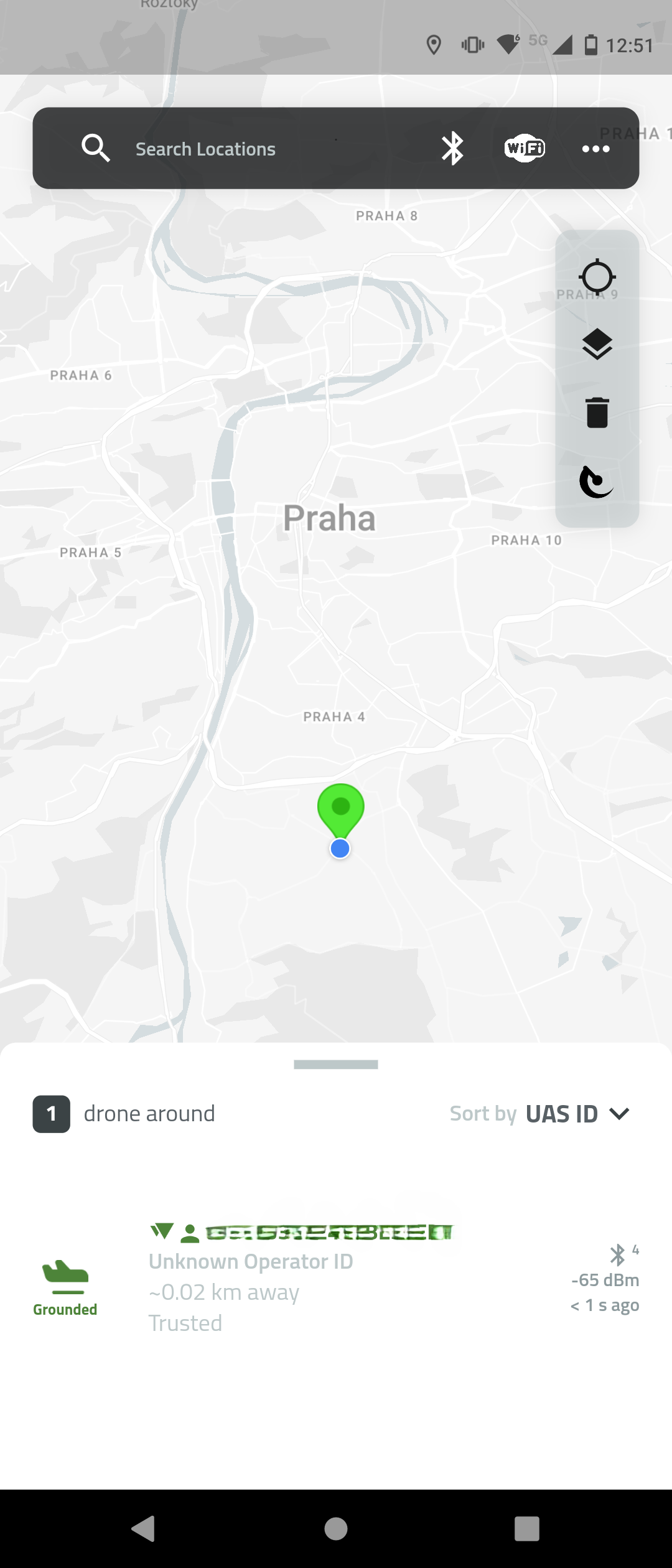
Use the Dronetag DroneScanner app on a BLE 5.0-capable device:
-
Confirm the transmission of Remote ID data:
- Serial number
- Drone location
- Timestamp
- Operator info (if applicable)
-
Done
At this point your drone or module design meets the technical requirements of Standard Remote ID. To fully complete compliance as a manufacturer for the US market, you must also finalize the following steps:
- FAA Standard Remote ID compliance
- Use an FAA‑accepted Means of Compliance (MoC) (for example ASTM F3411).
- File a Declaration of Compliance (DoC) with the FAA, confirming that your production units follow the accepted MoC.
- Assign each unit a valid Remote ID serial number in the ANSI/CTA‑2063‑A format.
- Wait for FAA acceptance of your DoC before marketing or operating the product as a Standard Remote ID drone. Guidance: FAA Remote ID for Industry and Standards Bodies
Until the FAA accepts your Declaration of Compliance, your drone is not legally a Standard Remote ID aircraft. Operators cannot rely on it for compliance until this step is complete.
- FCC equipment authorization
- Determine the correct approval path: Certification (most common for intentional radiators like Wi‑Fi/Bluetooth) or Supplier’s Declaration of Conformity (SDoC).
- Perform compliance testing at a competent or accredited lab.
- Obtain approval, then label your product with the FCC ID (for Certification) or include the required compliance statement (for SDoC).
- Keep records available for inspection. Guidance: FCC Equipment Authorization Overview
Marketing or shipping drones with RF transmitters before FCC authorization is prohibited. Make sure you complete this step before offering your product for sale.
If you need any help certifying our device, please contact us at support@dronetag.com.