⬆️ Firmware Update
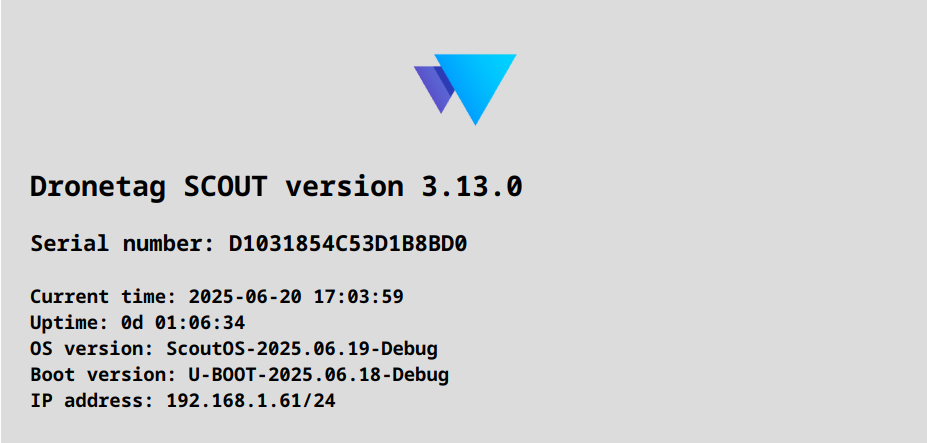
You can monitor the current firmware version of your Scout in the Management UI. For details on accessing the Management Interface, please refer to the Connecting to the Scout page.
Keeping your Scout´s firmware up to date is essential to ensure your device runs smoothly and securely. Firmware updates often include important security patches, bug fixes, and new features that enhance performance and functionality.
Checking your firmware version regularly, helps you stay informed about your device’s status. In the near future, this page will also include a detailed changelog documenting, the latest features and improvements.
We strongly encourage you to keep your Scout updated to prevent vulnerabilities and enjoy the full benefits of the latest enhancements.
🔄 Automatic Firmware Updates
The firmware update process depends on the mode you are using and your device generation.
Firmware Updates in Sensor+ and Cloud Mode
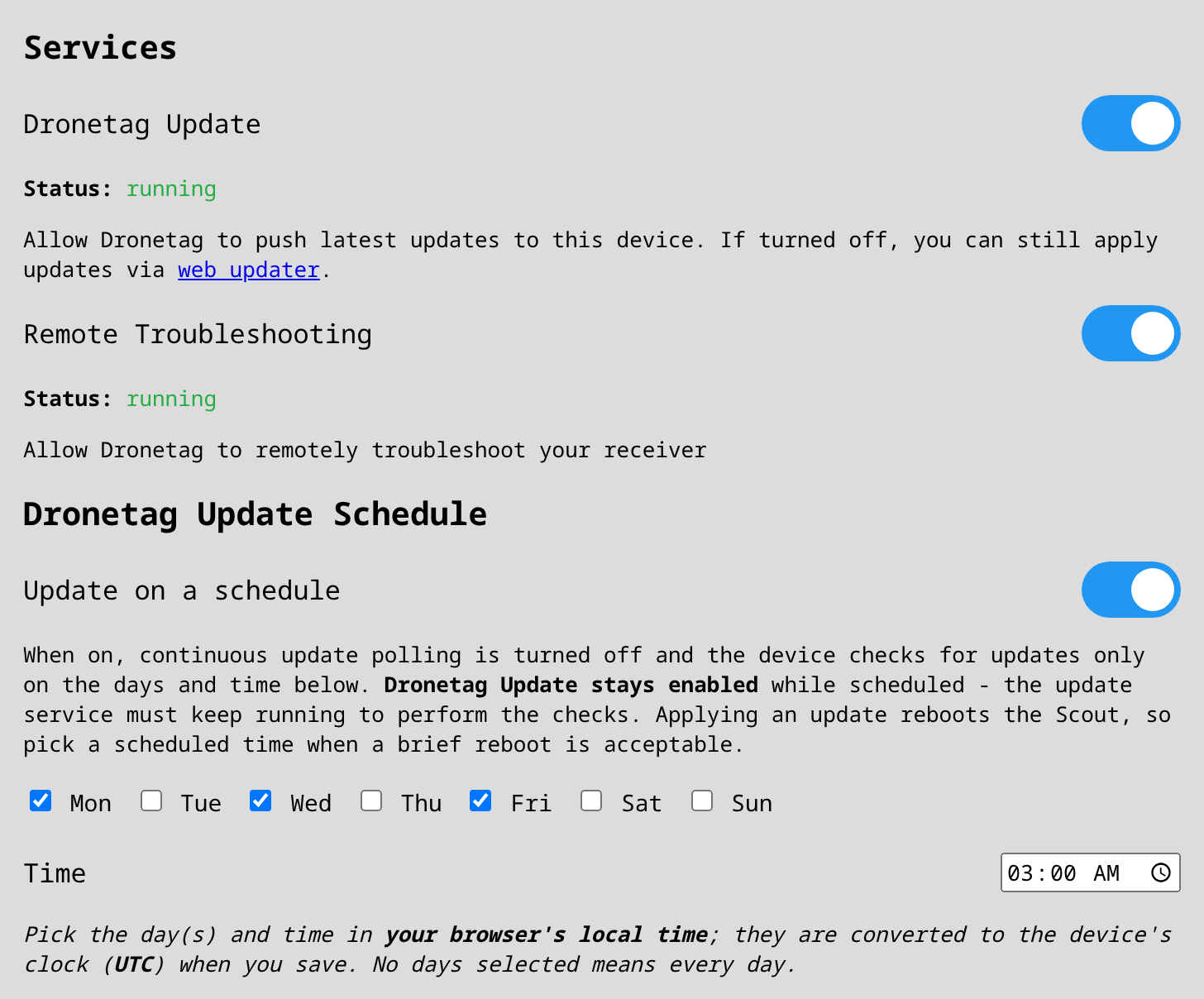
When using your Scout in Cloud Mode, firmware updates are handled automatically by the Dronetag Update service.
This service must be enabled for automatic updates, to apply. You can manage this in the System Maintenance Services section.
Your device will always run the latest firmware version as soon as it’s released.
Choosing When Updates Happen
Automatic updates are driven by the Dronetag Update service on the System tab, and you can control when the Scout checks for and applies them:
- Continuous (default) — with the Dronetag Update toggle on, the Scout checks for new firmware regularly and installs updates as soon as they are released.
- Scheduled — turn on Dronetag Update Schedule to restrict update checks to specific days of the week and a time of day. Continuous checking is turned off and the Scout only checks — and installs, if an update is available — at the times you choose. This is useful for keeping updates, and the reboot they trigger, inside a maintenance window.
The Dronetag Update service stays enabled while a schedule is active — the update service must keep running to perform the scheduled checks. Leaving no weekday selected means the check runs every day at the chosen time.
You pick the day and time in your web browser's local time. When you save, the Scout converts it to its own clock, which runs on UTC (the Scout has no geographic time zone; its clock is kept accurate over the network). So the same schedule fires at the same real-world moment no matter where you set it from. Note that if your region observes daylight-saving time, a schedule set once keeps its fixed UTC moment and will therefore appear to shift by an hour across a DST change — re-save it if you want to realign it.
Applying an update reboots the Scout, so pick a scheduled time when a brief reboot is acceptable. See Automatic Reboot After the Update.
💾 Manual Firmware Updates for Scout
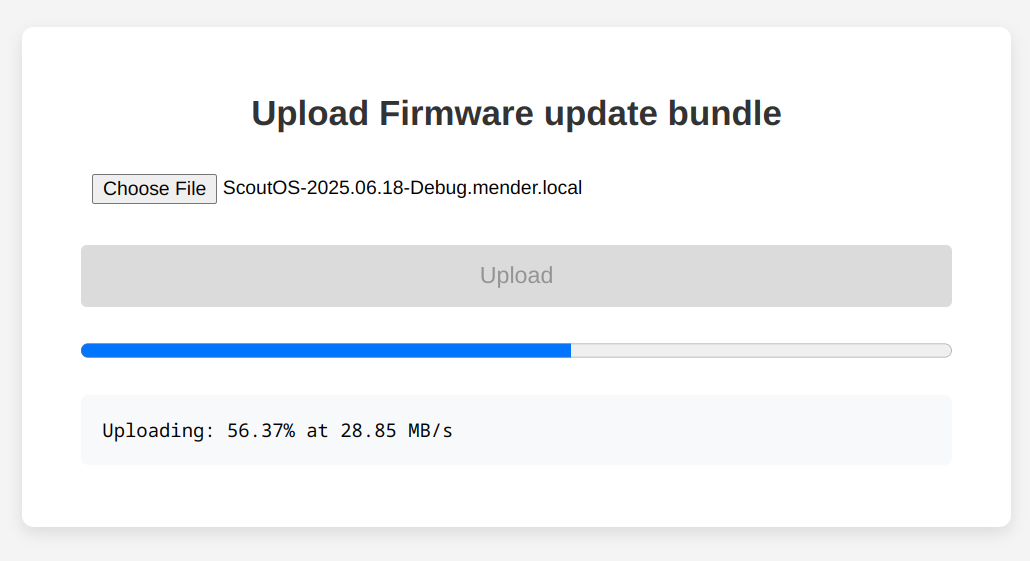
Manual firmware updates are performed from the Firmware Update page of the Management UI:
- Access the Management Page for your device.
- Navigate to the firmware update page at
http://<Scout-IP>/update(replace<Scout-IP>with your device’s IP).
The page offers two ways of updating:
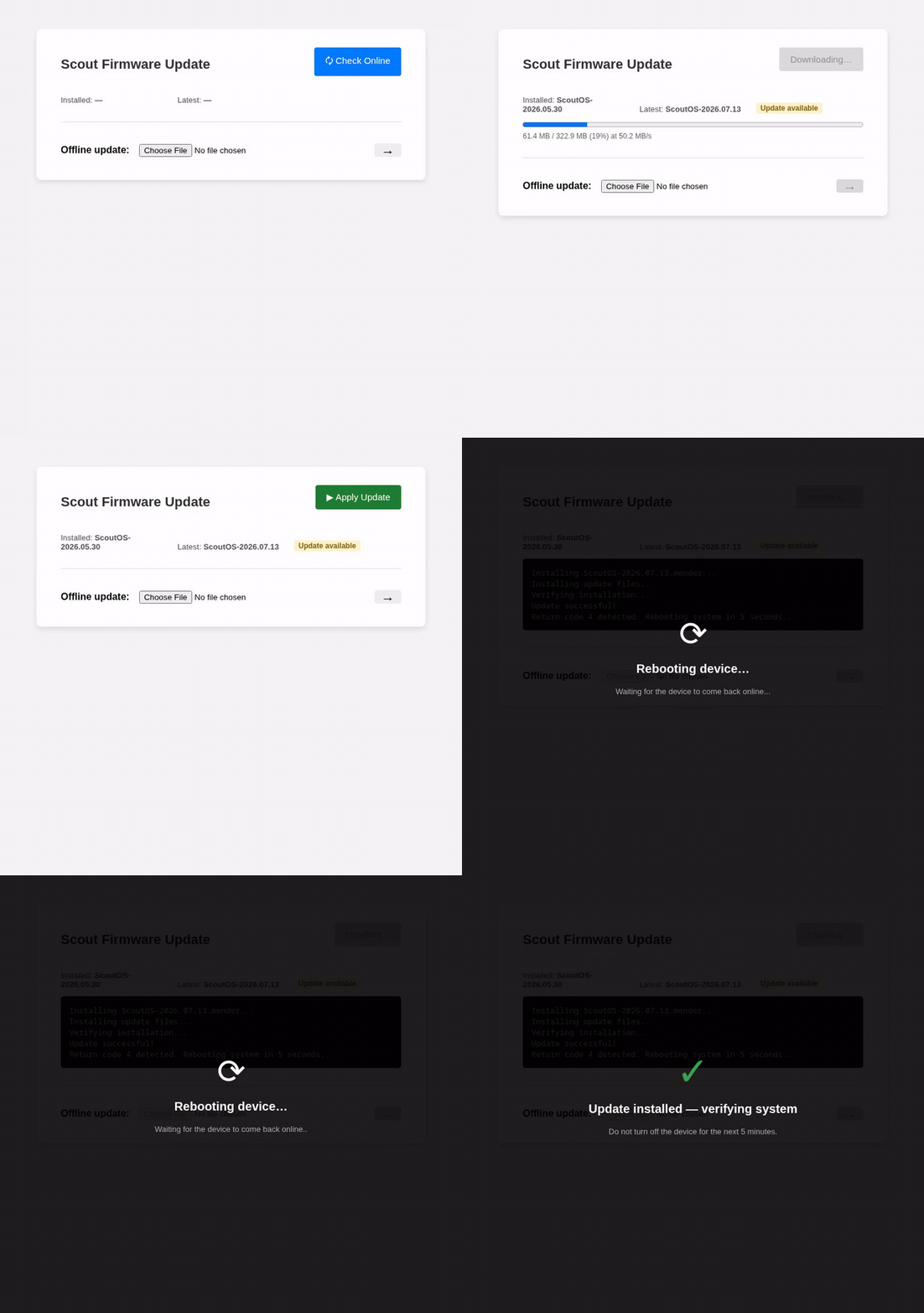
- 🗘 Check Online — the Scout checks Dronetag servers for newer firmware and downloads and installs it on request. The Scout needs internet access for this.
- Offline update — you upload a firmware bundle (a
.localfile provided by us) from your computer. This works even when the Scout itself has no internet access.
After a successful installation, the device reboots automatically.
🔎 Checking for Updates Online
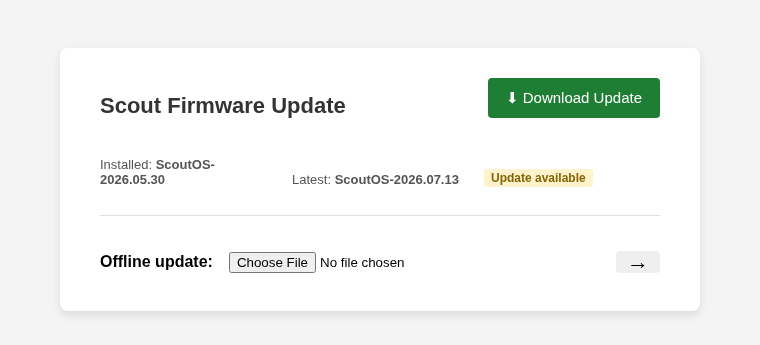
- Click the 🗘 Check Online button. The page shows the Installed and the Latest available firmware versions.
- If a newer firmware is available, an Update available badge appears and the button changes to ⬇ Download Update. Click it to download the update — a progress bar tracks the download.
- When the download finishes, the button changes to ▶ Apply Update. Click it to install the update. The installation log is streamed to the page.
- When the installation finishes, the device reboots automatically.
📤 Offline Update (Uploading a Firmware Bundle)
.local extension from downloaded files!When you download an update bundle on Windows, the file is often saved without the .local extension — you end up with e.g. ScoutOS-2026.07.13.mender instead of ScoutOS-2026.07.13.mender.local.
Rename the file and add the .local extension back before uploading it, otherwise the Scout cannot process the uploaded bundle.
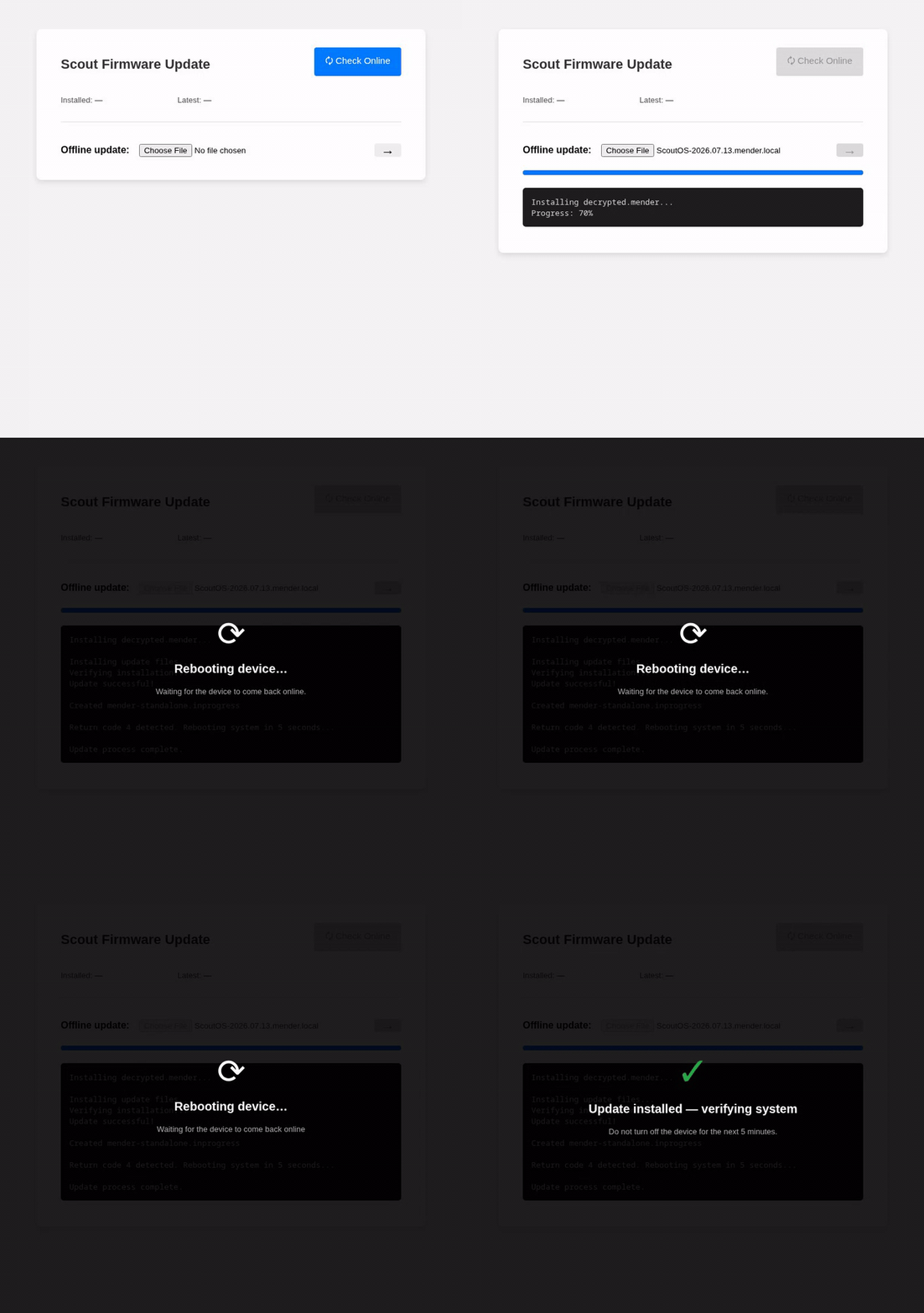
- Download the update bundle (
.localfile) — the packages and the changelog can be found on the Firmware Changelog page. - In the Offline update row, click Choose File and select the downloaded
.localfile. The upload starts immediately after the file is selected. - The upload progress and the installation log are streamed to the page.
- When the installation finishes, the device reboots automatically.
🔁 Automatic Reboot After the Update
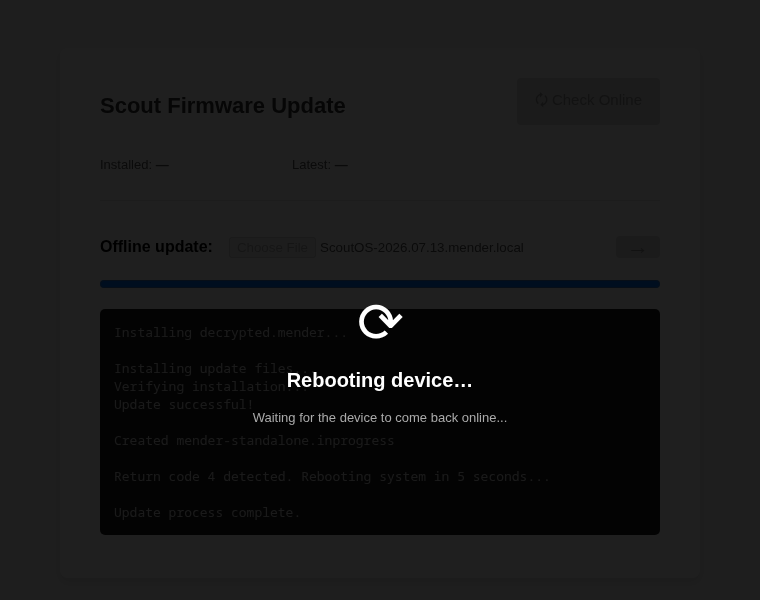
Once the new firmware is installed (via either method), the Scout reboots automatically. The page dims and shows “Rebooting device…” while it waits for the device to come back online. You don’t need to do anything — the page detects the device again by itself.
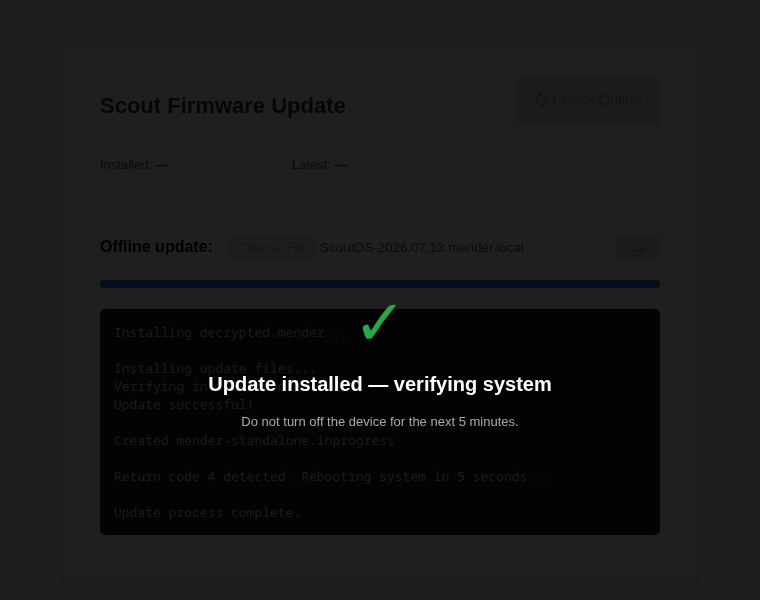
When the device is back online, the page shows “Update installed — verifying system”. The Scout then verifies the new firmware for several minutes and finalizes the update.
Keep the Scout powered during the entire update, and do not turn it off for at least 5 minutes after the reboot while the new firmware is being verified.
⚠️ Updating Scout EVK (Evaluation Kit)
For Scout EVK, firmware updates are applied automatically:
- Connect the Scout EVK to a network with internet access.
- Keep the device powered on for at least 1 hour.
- The management software will automatically download and install the latest firmware.
We strongly recommend upgrading to the latest Scout hardware and firmware for improved security and features.
For specific details on upgrading your Scout EVK to the latest version, please refer to the Scout EVK Upgrade page.
If you have any questions or run into issues during the update process, please contact our support team at support@dronetag.com.